
Scenario for Godot: user guide
Generate images, 3D models, PBR materials, skyboxes and sound effects with Scenario, straight into your scene. Exact Creative Unit price before every run.
Latest release
Download 0.2.0- Godot
- 4.7 editor plugin, GDScript only
- License
- MIT
- SHA-256
c6be01f87d7218f6a9de688450e7bf91d8e21c49824aa2ab1eebd3896912684a
Install
- Download the zip and extract it at the root of your Godot project, so that
addons/scenario/sits next toproject.godot. - Enable the plugin in Project > Project Settings > Plugins.
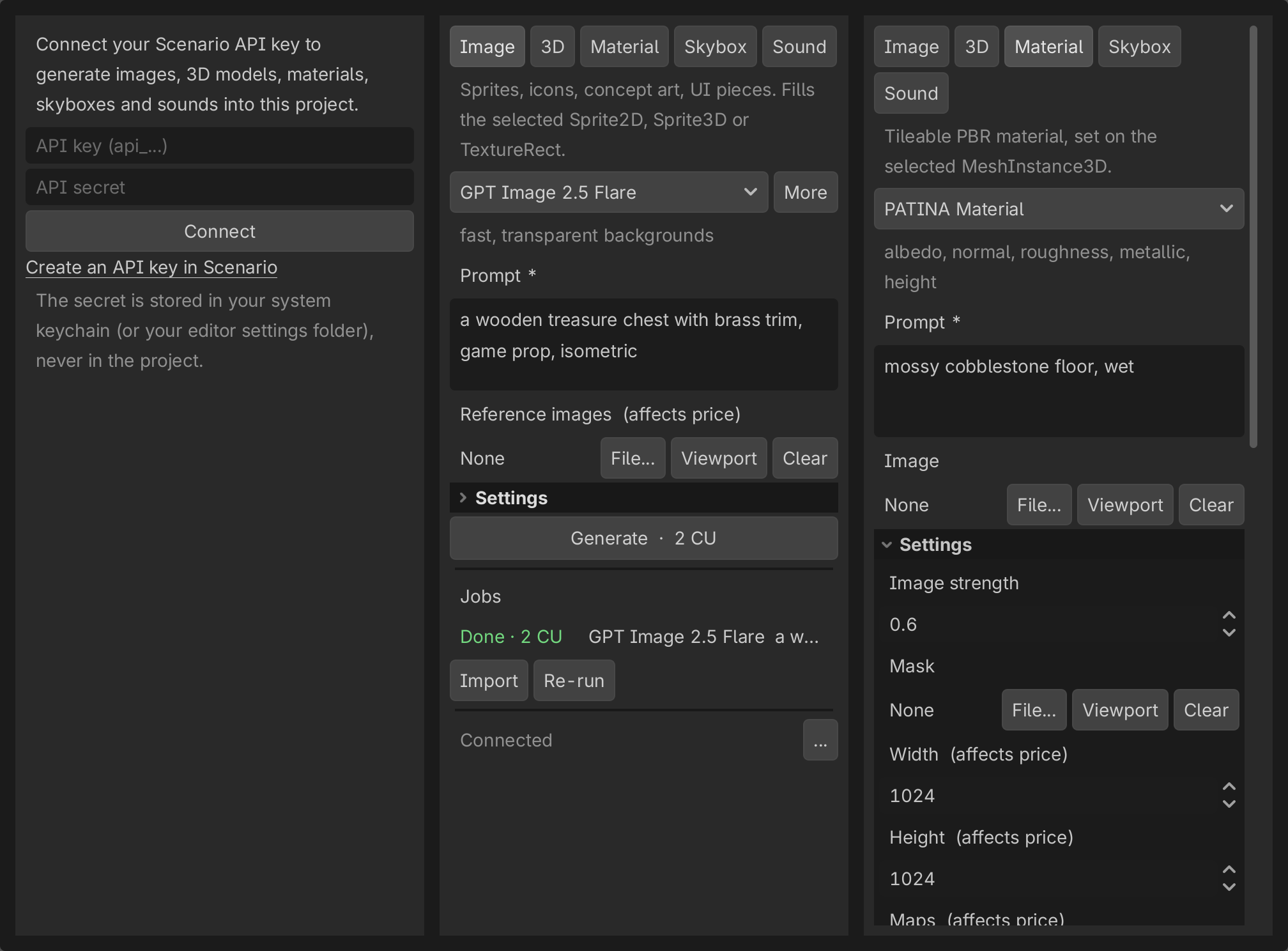
- Paste a Scenario API key and secret into the Scenario dock, then press Connect.
1. Connect
- Enable the plugin (Project > Project Settings > Plugins > Scenario). The Scenario dock opens in its own column, right of the Inspector. Like any dock, you can drag its tab elsewhere; Godot remembers the layout per project.
- In the Scenario web app (app.scenario.com), create an API key for the project that should pay for the generations. Copy the key (
api_...) and the secret. - Paste both into the dock and press Connect. The dock checks the pair with a free call and then shows the lanes.
The footer shows which key is in use and where it came from (keychain, file or environment). The ... menu holds Disconnect (forgets the key, and on macOS removes the secret from the Keychain), Open Scenario and Check unknown jobs.
2. Generate
- Pick a lane: Image, 3D, Material, Skybox or Sound.
- Pick a model. Each lane opens on its default model; the line under the picker says what the model is good at. On the Image, 3D and Sound lanes, More adds Scenario's recommendations for your prompt.
- Write the prompt. Fields marked
*are required. - Add references if the model takes them: File... picks an image from the project, Viewport captures the editor's 3D view, Clear removes it. References are uploaded to your Scenario project (free) and the price updates.
- Open Settings for the rest of the model's options (size, quality, seed, mask...). Options marked "affects price" change the cost.
- Wait for the price. The button reads
Checking price..., thenGenerate · N CU. A red line under the form explains anything that blocks it (a missing field, a failed price check); after a failed check the button reads Check price and tries again. - Press Generate. Above the confirmation threshold (100 CU by default) a dialog asks first.
The price is checked again after each change, so the button always shows what this exact request costs. One press sends one request; the next one needs a fresh price, which the dock fetches by itself.
3. Lanes
Image. Select a Sprite2D, Sprite3D, TextureRect, TextureButton or Decal first to replace its texture. With nothing selected, the image is added as a new node: a Sprite3D one metre tall in a 3D scene, a TextureRect in a UI scene, a Sprite2D otherwise. GPT Image 2.5 Flare can produce a transparent background (Settings > Background).
3D. Rodin Gen-2.5 makes a textured model with PBR materials from a prompt (80 CU at the cheapest tier on 2026-10-04). The image-to-3D models (Hunyuan 3D, Tripo 3.1, Meshy 7.1 image, Hitem3D) need an input image: add it with File... or Viewport. The GLB is imported and instanced under the selected Node3D, or 4 m in front of the editor camera. When the model also returns a thumbnail, it is saved next to the GLB as -preview.
Material. Select one or more meshes first. PATINA returns a color map plus normal, roughness, metallic and height maps; the dock builds a StandardMaterial3D, saves it as a .tres next to the textures and sets it as material_override on the selected meshes. With no mesh selected, the material is only saved: drag it onto a mesh later. The textures tile, so they suit floors, walls and terrain.
Skybox. Generates a 360 panorama and sets it as the sky of the scene's WorldEnvironment. If the scene has none, one is created with sky lighting and reflections.
Sound. Sonilo makes short effects of an exact length (1 CU for 2 s on 2026-10-04); ElevenLabs Sound Effects 2 can loop. The sound is added as an AudioStreamPlayer3D in a 3D scene, AudioStreamPlayer2D in a 2D scene, AudioStreamPlayer otherwise. Only WAV, MP3 and OGG are offered, the formats Godot imports.
4. Jobs
Each request appears under Jobs, newest first. The list survives editor restarts; jobs still running when you closed Godot are followed again when you reopen it.
| State | Meaning | Actions |
|---|---|---|
| Queued, Running | Scenario is working on it | Cancel |
| Done · N CU | finished; N is what Scenario charged | Import (or Show once imported), Re-run |
| Cancelling, Canceled | a cancel was requested, then confirmed by Scenario | Re-run |
| Failed | Scenario reported an error (hover the row to read it) | Re-run |
| Blocked | the request was refused by moderation; it is never resent | Re-run after changing the prompt |
| Not sent | refused before Scenario started (bad parameters, not enough CU, spending switch) | Re-run |
| Unknown | the connection dropped while the request was being sent: it may or may not have started | Check Scenario, Dismiss |
Import downloads the results, imports them and places them as described above. With Auto Import on (the default), finished jobs are imported as soon as they are done. Re-run puts the job's model and settings back in the form; it never sends anything by itself.
Unknown jobs block the same request until resolved, so a dropped connection cannot make you pay twice. Check Scenario looks for the job among your recent Scenario jobs and links it when exactly one matches. Dismiss clears the row when you have checked yourself.
5. Files
- Results:
res://scenario/<lane>/<date>-<prompt>-<asset>[-<map>].<ext>. - Provenance: a
.scenario.jsonnext to each result, with job id, model, prompt, parameters, quoted and charged CU, asset ids and import time. Commit it with the asset. - Materials and skies: a
.tresnext to their textures. - Job list:
res://.godot/scenario/jobs.json(local to your machine).
6. Settings
Editor Settings > Scenario:
- Confirm Above CU (100): requests above this price ask for confirmation.
- Auto Import (on): import and place finished jobs automatically.
Environment variables, read when Godot starts:
SCENARIO_API_KEY,SCENARIO_API_SECRET: use this key instead of the saved one.SCENARIO_NO_SPEND=1: refuse every paid request and upload inside the editor. Price checks, cancels and imports still work.
7. Troubleshooting
| You see | What to do |
|---|---|
| "Wait for the price check to finish." | The form changed after the last price; wait a moment. |
| A price check error | Read the message under the form, then press Check price. |
| "Automatic price checks are off for this session." | Scenario answered a price check with a job, which should not happen. Check that job on Scenario (its id is in the message), then press Check price to turn checks back on. |
| Not sent: not enough Creative Units | Top up the Scenario project of the key, or pick cheaper settings. |
| "This exact request may already be running." | An Unknown job has the same settings: press Check Scenario first. |
| Material saved but not applied | No mesh was selected: drag the .tres onto a mesh. |
| "Open a scene to place it." | The result was imported but not placed: open a scene, press Show on the job and drag the file in. |
| An import error on a finished job | Press Import again; the job stays Done until its files are placed. |